Workstreams
A workstream is a named, isolated space where you make changes to a P1 site before those changes reach your visitors. You can create pages, edit content, adjust metadata, and localize content in a workstream, review everything together, and then take it all live at once.
Workstreams are how P1 lets many people, and many AI agents, work on the same site at the same time without stepping on each other or on the live site.
Who this page is for
This page is for anyone who works on a P1 site: content creators, marketers, site managers, developers, and the people who configure AI agents. It explains what workstreams are and how they fit into everyday work. For step-by-step instructions, see the tutorials listed under Next steps.
Why workstreams exist
Most content management systems give each page one live version and, perhaps, one draft. That works until more than one thing is happening at once. Real web teams are rarely doing just one thing: a campaign launch, a redesign, and a new market can all be in progress at the same time.
With only one draft, teams end up freezing small changes while a big project is in flight, or copying and pasting work between drafts by hand. Workstreams remove that tradeoff:
- Each initiative gets its own workstream, fully independent of the others.
- Work in one workstream never affects Live or any other workstream until someone merges it.
- When a workstream is ready, all of its changes go live together, after a review step.
Key concepts
Live
Every P1 site has a Live workstream. Live is what your published site serves to visitors. In APIs and some developer tooling, Live is called main.
You can make changes directly on Live, and anything published there is immediately visible to visitors. For anything you want to review first, use a workstream.
Workstreams
A workstream is a copy of your site's content that you can change safely. When you create a workstream, it starts from the current published state of Live. From then on, it keeps its own version of every page it touches, including:
- Page content and layout
- New pages and deleted pages
- Page metadata, such as Open Graph and X card values
- Localized page variants and translation reviews
Because each workstream keeps its own page state, two workstreams can contain different versions of the same page. For example, a "Fall campaign" workstream and a "2027 Rebrand" workstream can both change the homepage in different ways, and neither affects what visitors see today.
Give workstreams descriptive names that match the work, such as "Fall campaign" or "Mexican Spanish launch," so your teammates can tell what each one is for.
Merging and going live
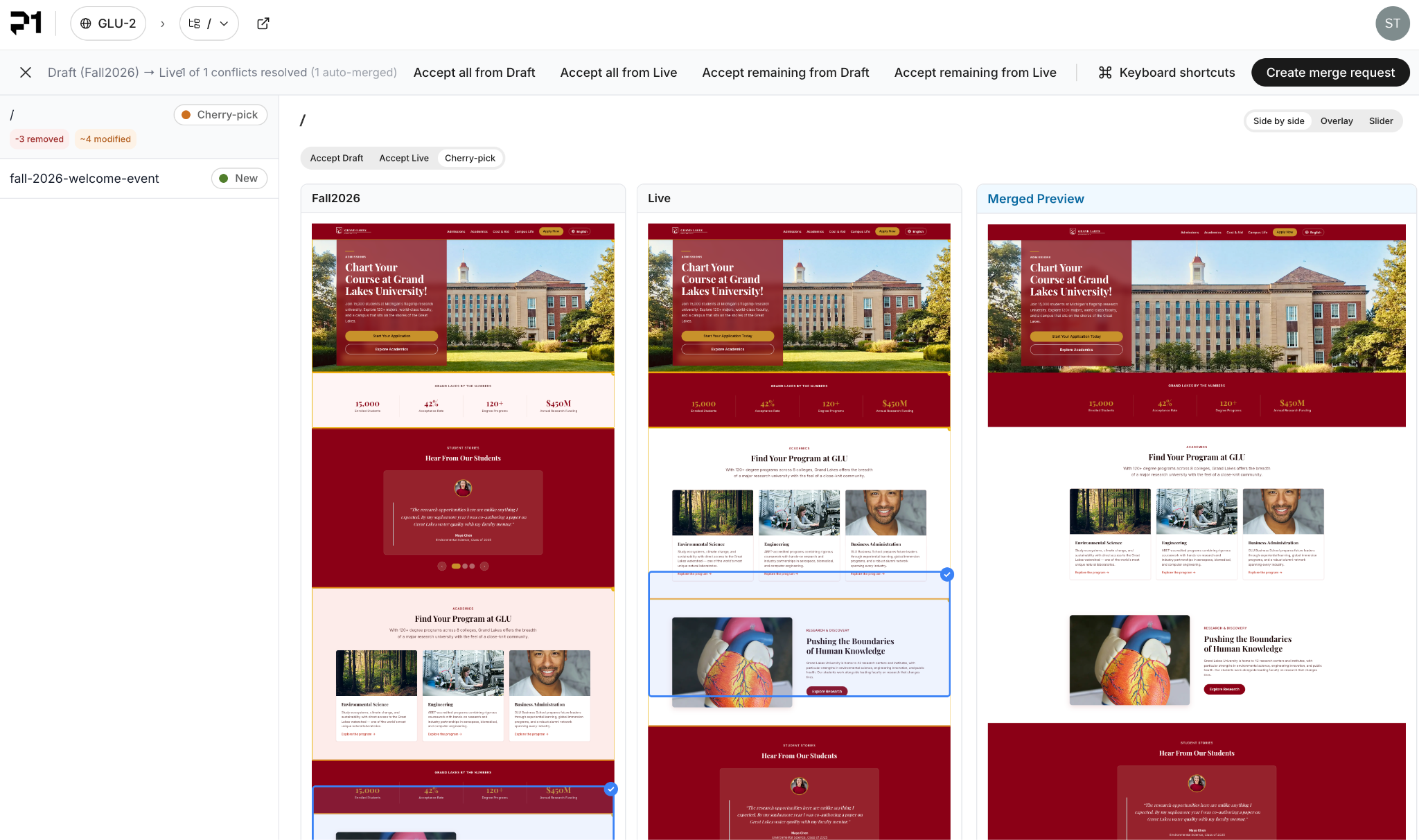
Merging moves a workstream's changes into Live. In the visual editor, you do this with the Go live action. Before anything is published, P1 opens a Review Changes screen where you can:
- See every changed page, compared side by side: Live on one side, the workstream on the other
- Toggle highlighting of the changed areas and preview on desktop, tablet, and mobile
- Compare metadata changes field by field
- Resolve any conflicts, which is required before you can continue
After you confirm, P1 publishes the workstream's changes to Live and shows the deployment's progress.
Conflicts
A conflict happens when the same part of a page has changed both in your workstream and on Live since your workstream was created. For example, someone might have fixed a typo on Live while you were rewriting the same paragraph in a campaign workstream.
P1 detects conflicts during review and gives you three ways to resolve each one:
- Keep the Live version
- Keep the workstream version
- Cherry-pick: choose parts from each version to compose a result that combines both
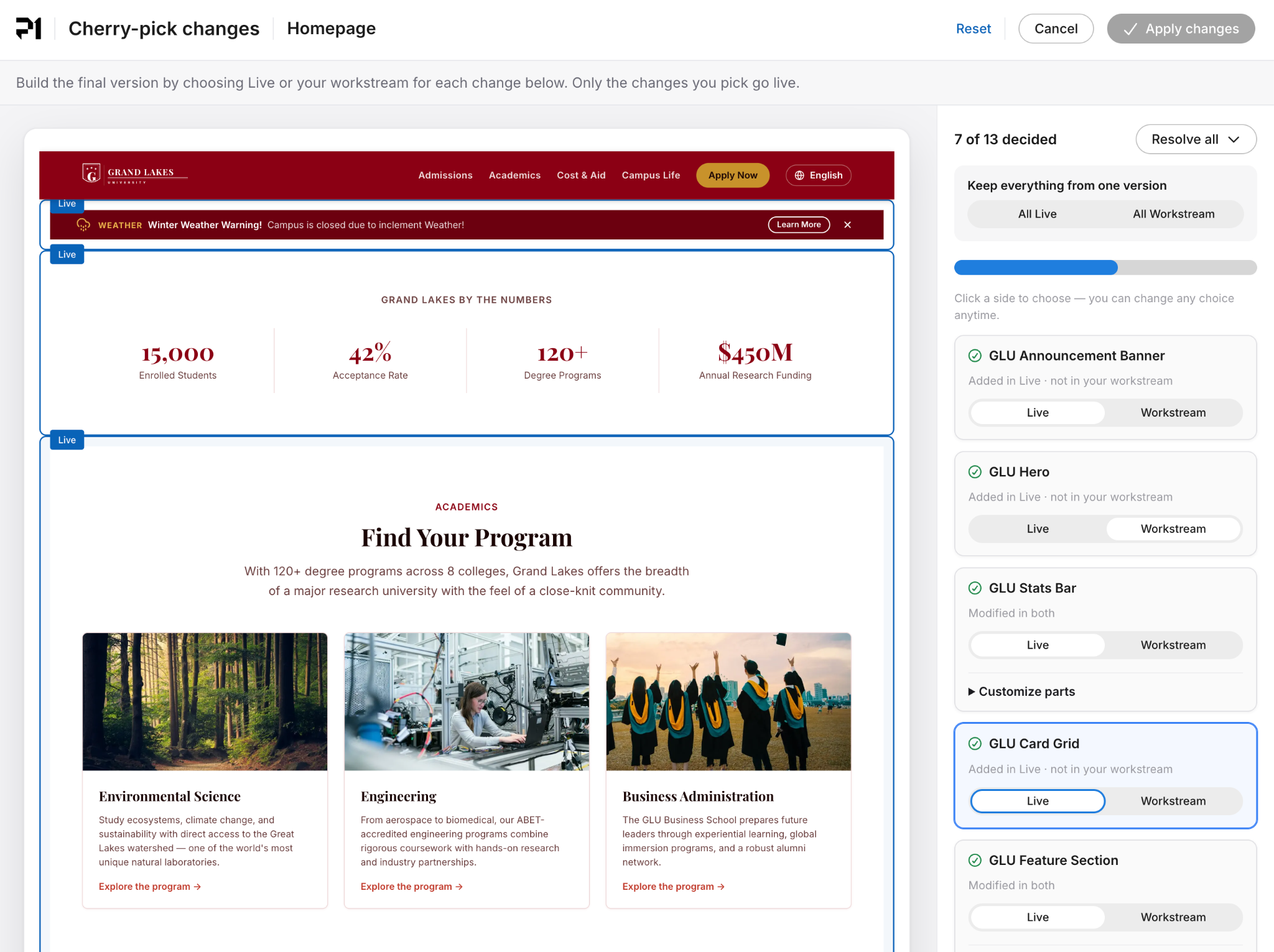
You can resolve conflicts one at a time, or apply a single choice to all remaining conflicts at once. Conflicts are resolved visually, on a rendered preview of the page, so you don't need to read raw data or code.
Publishing a single page
Sometimes one page in a larger workstream needs to go out right away. P1 lets you publish just that page to Live without merging the rest of the workstream. Publishing a single page always makes it live for visitors, so treat it with the same care as a full merge.
How workstreams fit with Pantheon environments
If you're a developer who already uses Pantheon's Dev, Test, and Live environments, note that P1 separates code and content:
- Code, such as your Next.js routes, components, and the P1 SDK, lives in your Git repository and ships through your Pantheon environments one at a time, as usual.
- Content, meaning the pages your team edits in P1, lives in P1, not in your Git repository.
All of your Pantheon environments read the same P1 content. To stage content changes before they go live, use a workstream rather than a separate environment.
Previewing a workstream
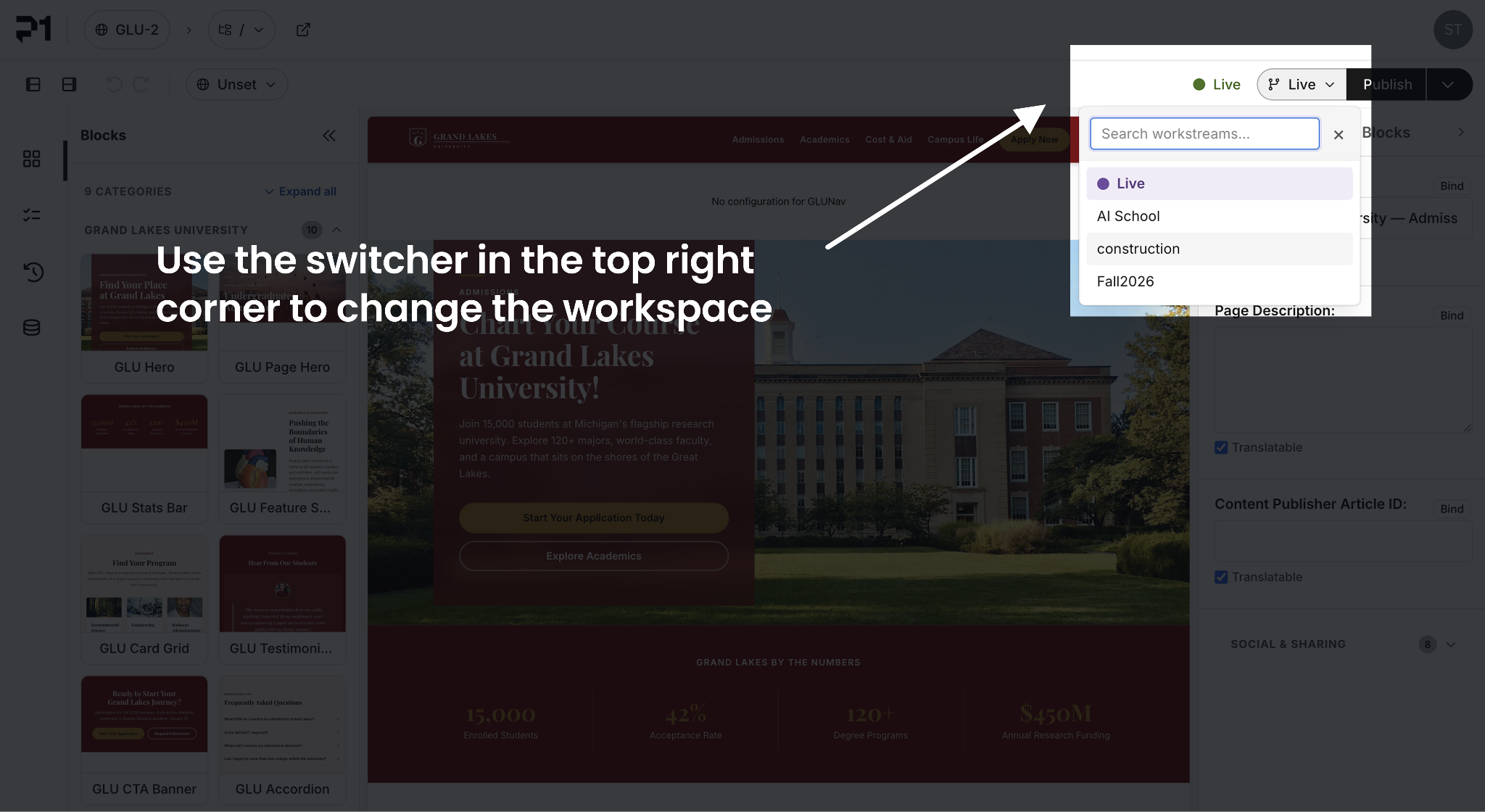
Use the workstream switcher in the P1 visual editor to choose which workstream you're viewing and editing. The editor shows you that workstream's version of each page.
Your public site URLs always serve the published Live version. A page that exists only in a workstream isn't visible to visitors, and opening its URL directly outside the editor shows the site's not-found page. To see a workstream's changes, preview them in the P1 editor.
Workstreams and AI agents
P1 is designed to be operated by AI agents as well as by people, and workstreams are what make that safe. Agents follow the same rules as your team:
- An agent works in a workstream, just like a person does.
- Changes an agent makes go through the same review, conflict resolution, and permissions as changes made by people. Agents have no shortcut to production.
- A person can review an agent's finished work in the workstream before deciding whether to merge it.
When you ask the P1 Agent or an agent connected through the P1 MCP server to make changes, check which workstream it's working in. Ask it to make changes in a specific workstream rather than on Live.
If you're building integrations: the P1 API and MCP tools refer to workstreams as branches. Identifiers such as branch_id and tools such as list_branches refer to workstreams. In the P1 dashboard and editor, and in your team's day-to-day language, they're called workstreams.
Localization in workstreams
Workstreams and localization work together. Translators and regional teams, whether they're people or agents, can create and adapt localized pages in a workstream and hand them off for review before anything is published. Translation reviews are recorded per workstream and carried into Live when the workstream merges, so finished review work isn't lost or repeated.
Because locale content is tracked per workstream, the locale filter in Site Structure shows only the locales that have content in the workstream you're currently viewing. For details, see Localize content in P1.
Who can do what
What you can do with workstreams depends on your role in the Business Account:
Action | Admin | Member | Viewer |
View pages in the visual editor | Yes | Yes | Yes |
Create a workstream | Yes | No | No |
Archive a workstream | Yes | No | No |
Edit pages in a workstream | Yes | Yes | No |
Review a workstream | Yes | Yes | No |
Resolve conflicts | Yes | Yes | No |
Merge a workstream | Yes | Yes | No |
Publish a page to Live | Yes | Yes | No |
For more about roles, see Roles and Permissions.
Recommended practices
- Use one workstream per initiative. Keep a campaign, a redesign, and a localization effort in separate workstreams so each can be reviewed and launched on its own schedule.
- Confirm your workstream before you edit. The workstream switcher shows where your changes will land. This is especially important when you're editing metadata or giving instructions to an agent.
- Merge regularly. The longer a workstream stays open while Live keeps changing, the more likely you are to run into conflicts.
- Review the whole workstream, not just individual edits. The Review Changes screen shows the complete experience visitors will see after the merge.
- Use single-page publishing sparingly. It's useful for urgent fixes, but merging the whole workstream keeps related changes together.