Page redirects
When the paths of your web pages change from one URL to another, redirects ensure that visitors still find your content. P1 automatically creates redirects when content changes.
Creating redirects
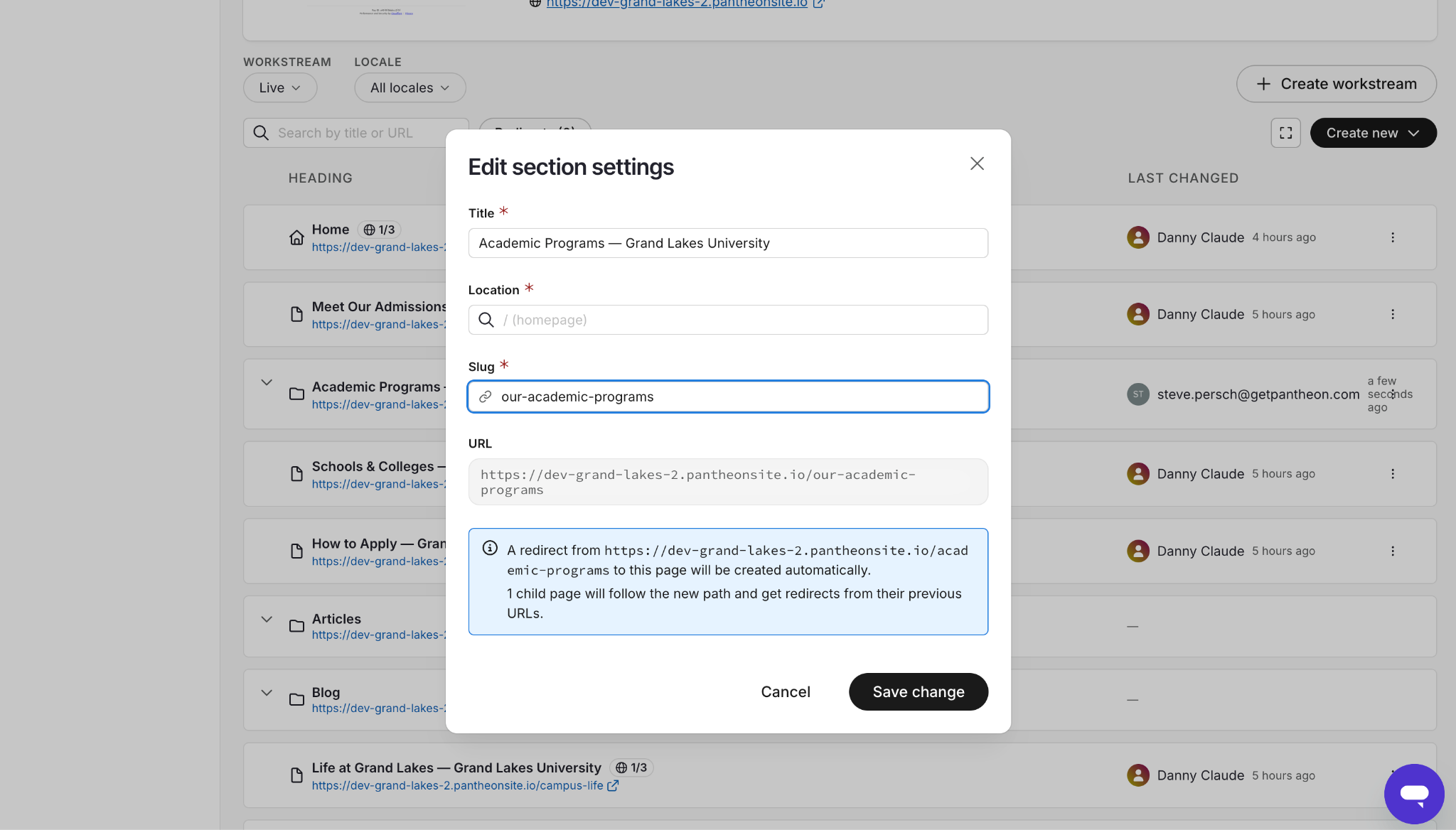
When the page slug changes
When editors or agents are updating content, they can change content and metadata but also slugs. The slug change might be on purpose or not. When a slug is changed, P1 asks the user making the change “do you want to redirect the old URL to the old one?”
When the page parent’s URL changes
If a page is published with a url such as https://mysite.com/news/my-page and the “news” section is updated and renamed the “articles” section, all URLs under /news/* are redirected to /articles/*.
Viewing existing redirects
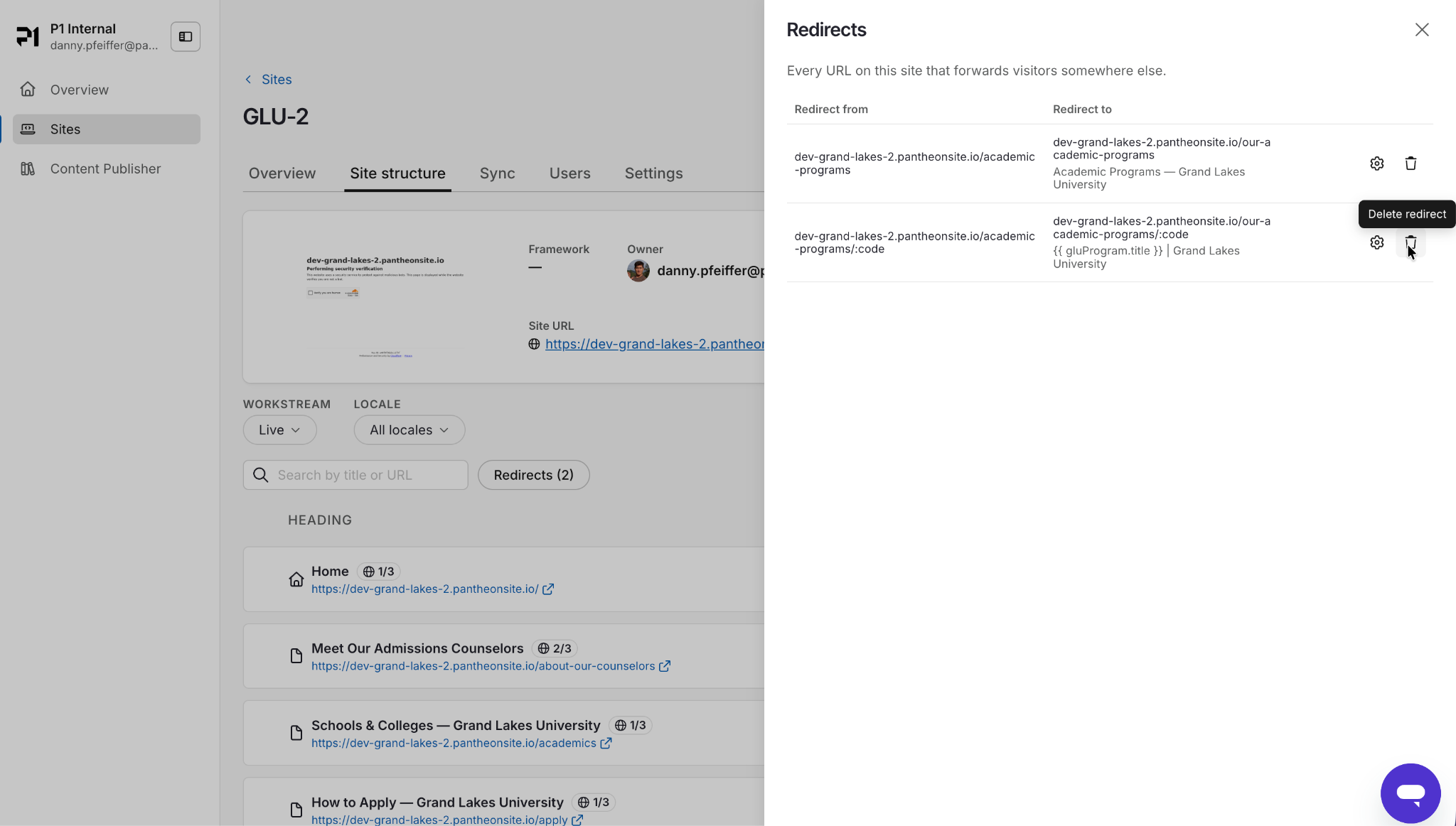
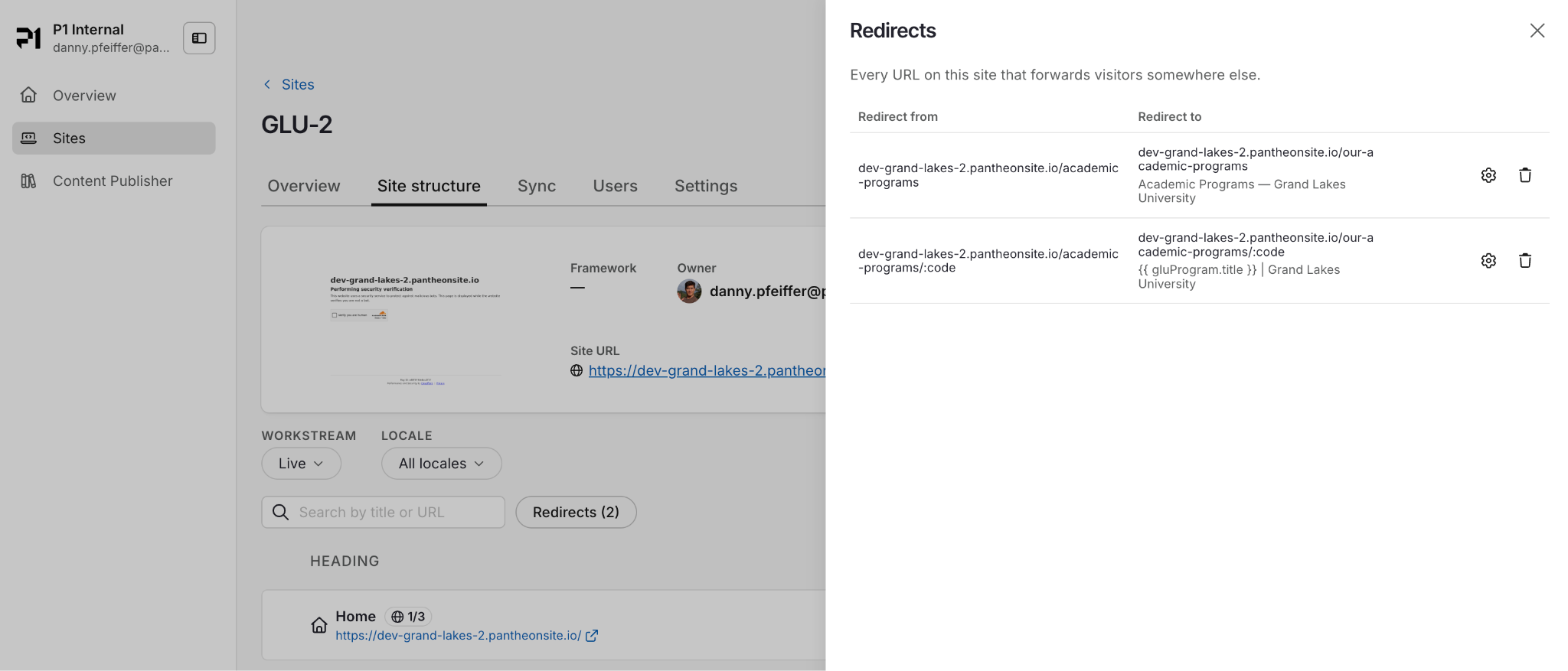
Existing redirects within a site can be viewed from the "Redirects" tab under the "Site structure" section.
Deleting Redirects
To delete a redirect, first load all redirects by clicking "Redirects" from within the Site structure section. Then press the trash icon on the redirect that you no longer need.