Managing Page Metadata
Page metadata helps search engines, social platforms, and other services understand how to describe and display a page. In P1, editors can manage supported page metadata from the same interface used to edit page content.
This guide explains how to set page metadata, when P1 supplies inherited values, and how to verify the result after publishing.
Who this guide is for
This guide is for P1 users who create, edit, review, or publish pages. It assumes that you already have access to the page and the workstream where you want to make changes.
What page metadata controls
P1 supports metadata for two common uses:
- Open Graph metadata controls how a page can appear when it is shared through services that support the Open Graph standard.
- X card metadata controls how a page can appear when it is shared on X.
P1 renders the configured metadata as tags in the published page’s <head>.
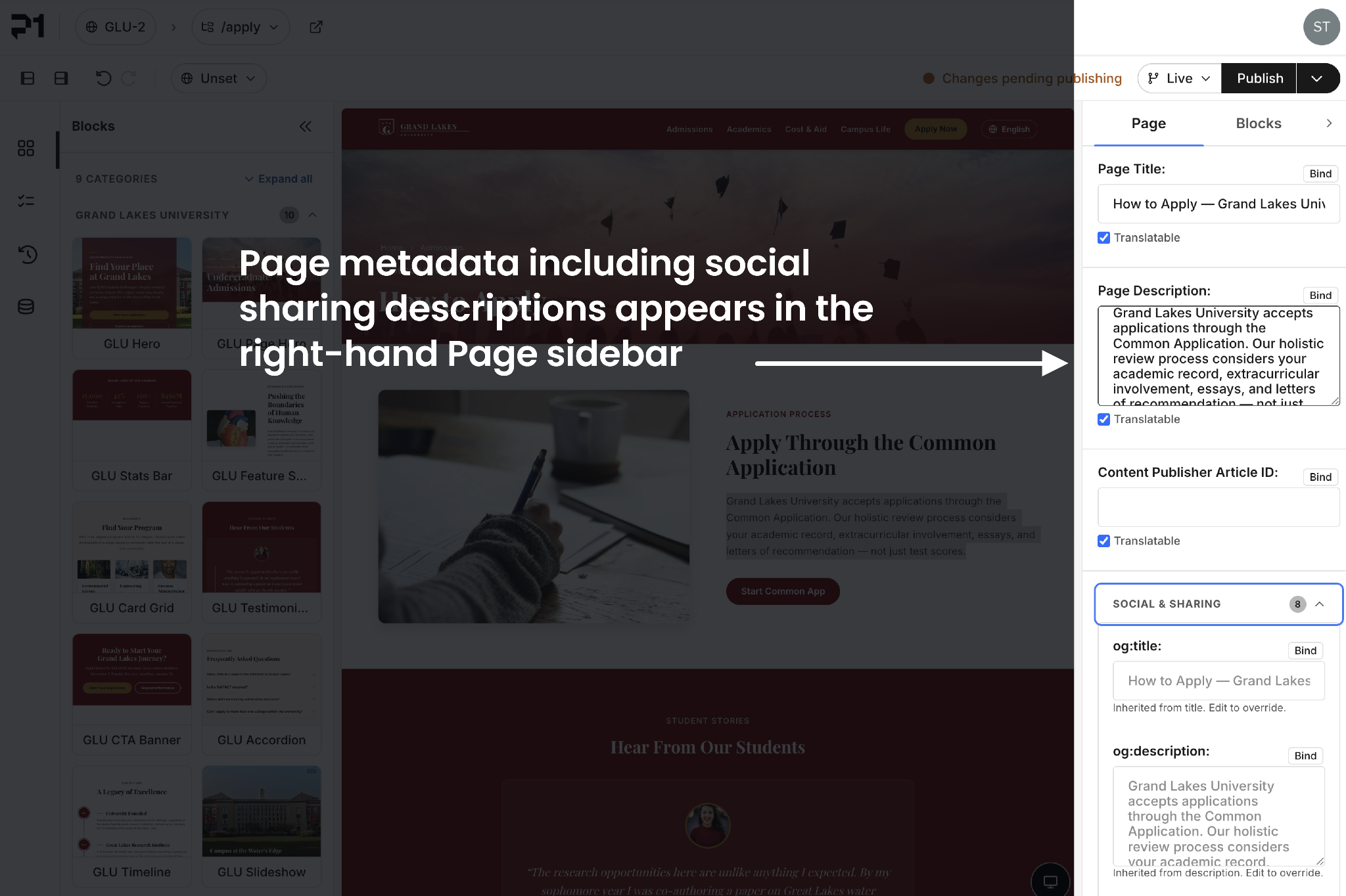
Open the Metadata section
- Open the page in the P1 visual editor.
- Select the Page tab in the right sidebar.
- Expand the Metadata section.
- Enter or update the appropriate values.
- Review the page in the correct workstream.
- Publish the changes when they are ready.
The Metadata section is collapsed by default so that optional fields do not take space away from common page settings.
Available metadata fields
Open Graph
Field | What it controls | Example |
Open Graph title | The title used when another service creates a preview of the page. | Introducing our fall collection |
Open Graph description | The summary used in a page preview. | Explore new styles designed for the season. |
Open Graph type | The general type of content represented by the page. | website or article |
Open Graph image | The image used in the page preview. | A share image selected or referenced for the page |
Open Graph locale | The language and regional locale of the page. | en_US |
P1 determines the page URL automatically when rendering the page, so there is no separate Open Graph URL field for editors.
X cards
Field | What it controls | Example |
X card style | The layout of the card displayed on X. | summary_large_image |
X title | The title displayed in the X card. | Introducing our fall collection |
X image | The image displayed in the X card. | A landscape share image selected or referenced for the page |
When an image resolves for the page, the card style defaults to summary_large_image. Otherwise, it defaults to summary.
How inherited values work
You do not need to duplicate the page title or description just to create metadata.
When a supported metadata field is empty, P1 can resolve an appropriate value when the page is rendered. For example, an empty Open Graph title can use the current page title. This keeps the social title aligned when the page title changes later.
An empty field in the editor does not necessarily mean the published tag will be empty. The inherited value may not appear as placeholder text in the editor, so verify the rendered page when inheritance matters.
To override an inherited value, enter a value in the metadata field. To return to the inherited value, clear the override.
Example workflow
Suppose a page is titled Fall product launch, but its social preview should use a shorter, more promotional title.
- Open the page and expand Page > Metadata.
- Leave the Open Graph description empty if the page description is appropriate for sharing.
- Set the Open Graph title to Meet our fall release.
- Set the Open Graph image to the intended share image.
- Set the X card style to summary_large_image.
- Add an X title or image only if the X card should differ from the Open Graph preview.
- Publish and verify the rendered metadata.
This approach overrides only the values that need to differ while allowing the remaining values to stay aligned with the page.
Metadata and workstreams
Metadata values are part of the page state in a workstream. Different workstreams can therefore contain different metadata values for the same page.
Before editing or publishing metadata:
- Confirm that you are working in the intended workstream.
- Review metadata along with the page content during approval.
- Make sure that the workstream containing the final metadata changes is the one being published.
Verify published metadata
After publishing, verify both the tags and the resulting preview.
- Open the published page.
- Inspect the page source or browser developer tools and look in <head> for the og: and twitter: tags.
- Confirm that titles, descriptions, images, locale, and card style match the intended values.
- Test the page URL with the relevant social preview or sharing debugger when available.
Social platforms may cache an older preview. If the tags are correct but the preview is outdated, use the platform’s refresh or re-scrape option.
Current limitations
The first version of page metadata management has a fixed set of Open Graph and X fields.
- Editors cannot define additional metadata fields from the sidebar.
- Tag-manager scripts are not included in this metadata interface.
- Schema.org JSON-LD is not included in this metadata interface.
- Inherited values may not be visible as placeholders in the editor even though they resolve when the page renders.
Recommended practices
- Keep titles concise and specific to the page.
- Write descriptions that make sense outside the context of the site navigation.
- Use an image intended for sharing, with a clear subject and enough contrast for text or interface overlays.
- Override inherited values only when a platform-specific preview should differ from the page itself.
- Review metadata whenever a page title, description, locale, or primary image changes.
- Verify the published result instead of relying only on the values visible in the editor.